
Have you ever clicked on a slicer in your report and sat there watching a little circle spin for ten seconds? If you have, you know exactly how frustrating a slow report can be. As a senior Power BI developer, I can tell you that nothing kills user adoption faster than bad performance. Your stakeholders will simply stop using your reports if they have to wait for the data to load.
Many beginners think that a slow report is a problem with their internet connection or their computer hardware. But in most cases, the real issue hides under the surface. The problem usually lies in the data model.
Power BI is incredibly powerful. However, if you feed it unstructured, bloated data, it will struggle. Today, I am going to share my personal five-step model clean-up routine. These are practical Power BI performance optimization tricks that you can apply right now to fix those sluggish dashboards.
Why Your Power BI Dashboard is Running Slow
Before we jump into the fixes, you need to understand how the software actually stores data. Power BI uses an in-memory storage engine called VertiPaq. This engine is designed to compress your data so it can be scanned at lightning speed.
However, VertiPaq is very picky. It loves data that is narrow and repetitive. It hates data that is wide, unique, and bloated. When your report runs slowly, it almost always means the VertiPaq engine is working too hard to read your data model. By cleaning up your data model, you give the engine exactly what it wants. This reduces memory usage and drastically speeds up your DAX queries.
Let us look at the five practical steps to achieve better Power BI dashboard performance.

Step 1: Trim the Fat (Remove Unnecessary Columns and Rows)
The very first thing I do when I audit a slow Power BI report is look at the tables. More often than not, developers import entire database tables without filtering them.
You must ask yourself if you really need every single column. If a column is not used in a visual, a relationship, or a DAX measure, you should delete it. Every extra column eats up precious memory.
You also need to pay attention to a concept called column cardinality. Cardinality simply refers to the number of unique values inside a column. The VertiPaq engine struggles to compress columns with high cardinality.
For example, primary key columns or exact timestamp columns (like “10/12/2023 14:35:01”) have very high cardinality. If you have a date and time column, split it into two separate columns. A date column has far fewer unique values than a column that tracks every single second of the day. This simple trick can cut your file size in half and drastically improve performance.
Step 2: Build a Proper Star Schema Data Model
Many new users treat Power BI like an Excel spreadsheet. They try to combine all their data into one massive, flat table using Power Query. This is a huge mistake.
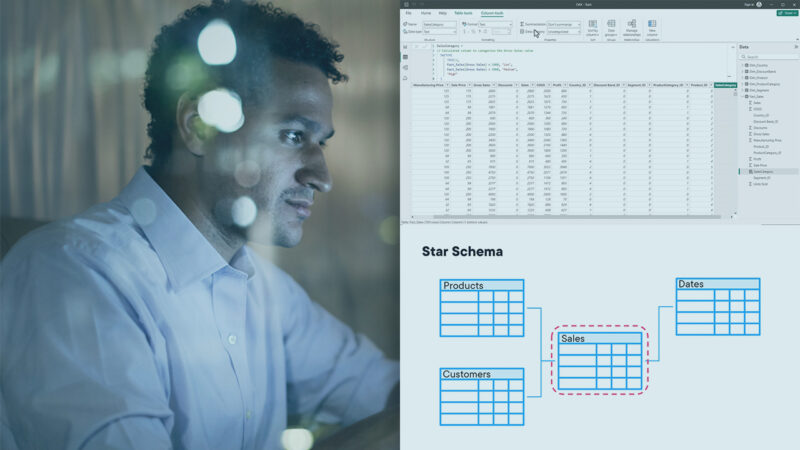
Power BI works best when you use a Star Schema. A Star Schema separates your data into two distinct types of tables: Fact tables and Dimension tables.
Fact tables hold your numerical data and transactional records. Think of sales amounts, quantities, and dates of purchase. Dimension tables hold your descriptive data. This includes customer names, product categories, and geographical locations.
When you build a Star Schema, the engine can filter data much more efficiently. Instead of scanning one massive table with millions of rows and fifty columns, it only scans the small dimension tables to apply filters. Proper Power BI data modeling is the foundation of a fast report. If you do not get this right, no amount of advanced coding will save your dashboard.
Step 3: Stop Using Calculated Columns for Everything
As you build out your reporting logic, you will often need to create new data points. Power BI gives you two main ways to do this: calculated columns and measures.
A common beginner trap is creating calculated columns for every new calculation. You should avoid doing this at all costs. Calculated columns are computed during the data refresh process. They are then saved into the memory of your data model. If you add ten calculated columns to a table with a million rows, your file size will explode.
Instead, you should use DAX measures. Measures are evaluated on the fly based on the filters applied in your report visuals. They do not take up storage space in your data model. They only consume CPU power when a user interacts with the dashboard.
If you absolutely must add a new column to a table, try to push that calculation back to the source database. If you cannot do that, create the column in Power Query rather than using DAX. Reserve your DAX strictly for measures.
Step 4: Optimize Your DAX Queries
Bad DAX code can bring a perfect data model to its knees. Writing efficient DAX requires practice, but there are a few simple rules you can follow right away to speed up your queries.
First, stop using the standard division symbol (/) and start using the DIVIDE() function. The DIVIDE() function automatically handles “divide by zero” errors safely and efficiently. The standard symbol forces the engine to do extra work to check for errors, which slows down the query.
Second, avoid using the FILTER() function on an entire table. If you write a measure that filters a whole table, the engine has to scan every single row and column. Instead, apply your filters to specific columns.
Third, start using variables in your DAX measures. Variables allow you to store the result of a calculation and reuse it multiple times within the same measure. The keyword for this is VAR. When you use variables, the engine only calculates the logic once. This prevents repetitive processing and makes your code much easier to read.

Step 5: Turn Off Auto Date/Time
This is my favorite quick fix because it takes exactly five seconds and yields amazing results.
By default, Power BI has a feature enabled called “Auto date/time”. Whenever you load a table that contains a date column, Power BI secretly creates a hidden date table in the background to help you group dates by year, quarter, and month.
If you have ten different tables, and each table has two date columns, Power BI just created twenty hidden tables in your model. This causes massive file bloat and slows down report rendering.
You need to turn this feature off. Go to the Options and Settings menu, navigate to the Data Load tab, and uncheck “Auto date/time”.
Instead of relying on hidden tables, you should create one single, central Date Dimension table. Connect this single date table to all the fact tables in your model. This keeps your model clean, reduces your file size, and ensures all your visuals filter dates in a consistent way.
Master Power BI Performance Optimization
Fixing a slow Power BI dashboard does not require magic. It just requires a systematic approach to data modeling and resource management. By removing unused data, building a proper star schema, relying on measures instead of calculated columns, writing clean DAX, and disabling hidden auto tables, you can transform a sluggish report into a lightning-fast dashboard.
However, reading about these concepts is just the first step. To truly master them, you need hands-on practice and guided instruction. Learning how to structure complex data models and write optimized DAX formulas can be overwhelming if you try to do it all on your own.

If you want to stop guessing and start building professional-grade reports, you should follow a structured curriculum. I highly recommend enrolling in a dedicated Power BI Course. A professional course will give you the practical skills you need to handle massive datasets and impress your stakeholders with blazing-fast dashboards.
The next time you see that loading circle spinning on your screen, do not just accept it. Open up your data model, walk through these five steps, and give your dashboard the clean-up it deserves. Your end users will thank you for it.